Settings
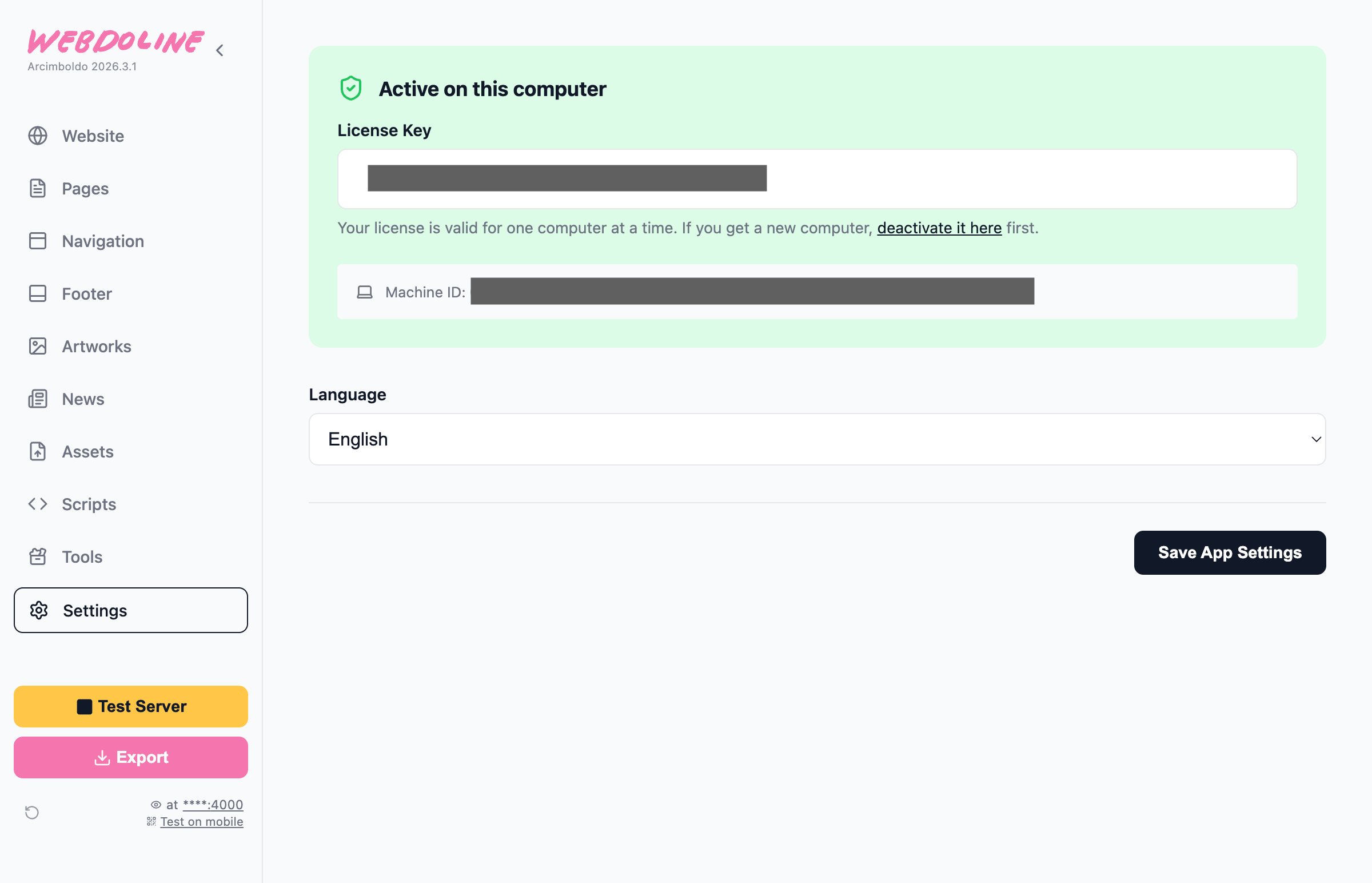
License key
This is where you enter the key you get when buying a Webdoline license. You need a key to be able to build your website. Without a key you can still use the app and evaluate if it meets your needs. Also you can still use the Tools section and download the content/files generated there.
Language
Choose your app language. Currently available in English & French.
Netlify Integration
Configure your Netlify account to allow direct deployments from within Webdoline. This is going to take like 10 minutes, but it is going to make your life much easier.
To set this up, enter your Netlify Auth Token (Personal Access Token that you can generate in https://app.netlify.com/user/applications) and your Netlify Site/Project ID.
Find your Netlify Auth Token
To generate a Netlify Personal Access Token (PAT), follow these steps:
- Log in to your Netlify account.
- Navigate to User Settings (click your avatar, then select User settings).
- In the sidebar, click Applications.
- In Personal Access Token the New token button.
- Enter a description for your token (e.g., "Webdoline Access") and click Generate token.
- Copy the generated token immediately and save it securely. You won't be able to see it again.
Find your Netlify Site ID
To find your Netlify Site ID, follow these steps:
- Log in to your Netlify account and select your specific site from the Sites list.
- Click on Project configuration.
- Under the "Project information" section, look for your Project ID.
- Copy the Project ID.
Once entered, you can click the Test Connection button to verify that your credentials are valid and have access to the specified site.
When configured successfully, an additional dropdown option will appear in the Sidebar's Export button, allowing you to deploy your website directly to Netlify with a single click.